
Match Homepage to Your Goal: 5 SharePoint Intranet Ideas for Leaders

Five homepage patterns cover most business needs: a news hub for company-wide communication, a knowledge hub for policies and resources, a daily-work dashboard for task-focused teams, a social hub built around Viva Engage, and a field-worker layout for frontline staff without desks. Pick the one that matches your primary objective, whether that’s findability, faster task completion, or better engagement., rather than trying to build all five at once. The SharePoint Look Book and Microsoft’s built-in templates mean you can have a working prototype live within days, not months.
TL;DR:
- Most effective intranets focus on a single pattern, such as news, knowledge, or workflow dashboards, based on organizational needs.
- Proper governance and metadata tagging are crucial for scalable navigation, with early decisions on site classification and ownership improving long-term management.
- Audience targeting enhances relevance but should be tested on mobile and kept simple to avoid overwhelming users or cluttering the homepage.
- Prior to launch, thorough accessibility, performance, and content audits prevent common issues and ensure a smooth user experience across devices.
- Using ready-made templates from the SharePoint Look Book and following phased deployment strategies increases the chances of a successful intranet rollout.
Table of Contents
- Intranet homepage patterns and real-world examples
- Site architecture, hubs and navigation choices that actually matter
- Getting engagement right with targeting and personalisation
- Accessibility, performance and migration checks before you launch
- Templates and demo resources worth borrowing from
- A quick checklist for piloting and launching your intranet
- What we’ve learned building intranets for real businesses
- How Jr-digital can help you build yours
- Key Microsoft guidance and example galleries
- Sources
- FAQ
Intranet homepage patterns and real-world examples
Most SharePoint intranets fail not because the platform can’t do the job, but because someone tried to solve five problems with one homepage. Pick a pattern that matches what your organisation actually needs, then build outward from there.
1. News hub. Built for top-down communication in larger, dispersed organisations. Best suited to leadership teams who need consistent messaging across sites, departments, or regions. Essential web parts: News, Highlighted Content, Events, and a Quick Links bar for policy pages. You can prototype this in an afternoon by pulling a communication site template from the Look Book and swapping in your own news sources.
2. Knowledge hub. Designed for organisations where staff spend time hunting for policies, forms, or how-to guides. Works best for HR, legal, or operations-heavy businesses. Essential web parts: Highlighted Content (filtered by metadata), Document Library, and a strong search box. Metadata tagging matters more here than design flair.
3. Daily-work dashboard. Built for task-focused teams who log into the intranet as part of their actual workflow, not just to read announcements. Best for project teams, sales, or operations. Essential web parts: Dashboard cards, Power Automate approvals, embedded Power BI, and Quick Links to core apps. This pattern rewards a tight, uncluttered layout over a busy one.
4. Social hub. Centred on Viva Engage conversations, recognition posts, and community groups. Works well for culture-driven organisations trying to build cross-team connection. Essential features: Viva Engage web part, Highlighted Content for community posts, and an events calendar.
5. Field-worker layout. Stripped back for frontline or shift-based staff accessing the intranet mainly on mobile. Best for retail, healthcare, or logistics. Essential web parts: large-tap Quick Links, a shift-relevant News feed, and minimal scrolling depth.
None of these are mutually exclusive. A retail head office might run a news hub for corporate updates and a field-worker layout for store staff, linked through the same hub structure. Start with the pattern tied to your most urgent problem, then borrow elements from the others as needs grow.

Site architecture, hubs and navigation choices that actually matter
A home site sits at the top of your intranet, acting as the primary landing experience across desktop and the SharePoint app in Teams. Administrators designate it directly in the SharePoint admin centre, and because it absorbs the highest traffic of any page in your tenant, it needs testing for both performance and accessibility before launch, not after.
Hub sites group related content, whether by department, region, or project, and give you shared navigation and search scope without forcing everything into one site. Decide early whether your organisation needs scenario-based navigation (grouped by task, such as “onboarding†or “expensesâ€) or portfolio-based navigation (grouped by department or brand). Mixing the two confuses users fast.
Metadata does more heavy lifting than most teams realise. Columns and content types power dynamic content roll-ups, meaning a policy tagged correctly will surface automatically in the right hub, the right search results, and the right Highlighted Content web part, without anyone manually updating a link.
Three governance rules worth setting before you launch anything:
- Agree a naming convention for sites and document libraries before the first one is created.
- Classify every site (public, internal, restricted) at creation, not retrospectively.
- Assign a named owner to each site, not a shared inbox or a department.
Pro Tip: Keep your governance team small. A five-person group with clear decision rights will move faster and enforce standards better than a fifteen-person committee that meets once a quarter.
Getting engagement right with targeting and personalisation
Audience targeting lets you surface different News items, dashboard cards, or Quick Links to different Microsoft 365 Groups, so a finance update reaches finance and a warehouse safety notice reaches the warehouse. It’s a relevance tool, not a security boundary: anyone with page access can still see targeted content if they know where to look.
Before launch:
- Preview dashboard cards as different audiences, not just as an admin.
- Test every card layout on mobile, where SharePoint often renders differently than expected.
- Cap dashboard cards at a sensible number; a screen full of tiles defeats the purpose of a dashboard.
Save Viva Engage for organisations that genuinely want social interaction. If your teams are task-focused, a cluttered social feed on the homepage will get ignored.
Accessibility, performance and migration checks before you launch
Run these checks before any page goes live, not after complaints start:
- Add descriptive alt text to every image and confirm colour contrast and keyboard navigation work across all web parts.
- Provide transcripts for embedded video or audio content.
- Optimise images for web before uploading, and run SharePoint’s built-in page diagnostics.
- Test every page on both desktop and a genuine mobile device, not just a resized browser window.
- Audit existing content before migrating anything: a content audit often shows old documents are better left behind than dragged into your new intranet.
Statistic Callout: Microsoft’s own planning guidance frames migration as a selective process, not a lift-and-shift exercise; recreating key pages fresh usually beats moving stale files wholesale.
Templates and demo resources worth borrowing from
You don’t need to design a homepage from scratch. The SharePoint Look Book hosts ready-made example pages you can copy and adapt directly, covering news hubs, dashboards, and department sites.
For home site templates specifically, favour Microsoft’s built-in communication site designs, they’re already optimised for the high traffic a home site needs to handle.
A workable prototype workflow:
- Pick a Look Book template closest to your chosen pattern.
- Create a communication site and apply it.
- Add the essential web parts for that pattern (News, Dashboard, Highlighted Content).
- Pilot it with a real team before rolling it out tenant-wide.
A quick checklist for piloting and launching your intranet
Getting from idea to working intranet follows a fairly predictable sequence:
- Recruit an executive sponsor, a project owner, and named content and site owners before building anything.
- Choose one high-impact scenario, such as a daily-work dashboard, to prototype and prove value first.
- Build the prototype and run it past a small group of real users, not just IT.
- Measure actual usage with analytics, then adjust before wider rollout.
- Plan communications, phase the rollout by department, deliver short training sessions, and enforce the governance rules you set earlier.
Pro Tip: Resist the urge to launch everywhere at once. A phased rollout gives you room to fix problems on fifty users before they become problems for five thousand.
What we’ve learned building intranets for real businesses
Most intranet failures trace back to skipping the planning stage, not to weak design skills. Businesses that succeed pick one scenario, prove it works, then expand. Across bespoke builds, we’ve seen the same pattern hold true: clarity of purpose beats visual polish every time.
— James
How Jr-digital can help you build yours
There are other routes to a working intranet: DIY templates, a generalist IT contractor, or leaving it to internal admin staff already stretched thin. One service provider offers a different route, one built around your actual business rather than a generic theme.
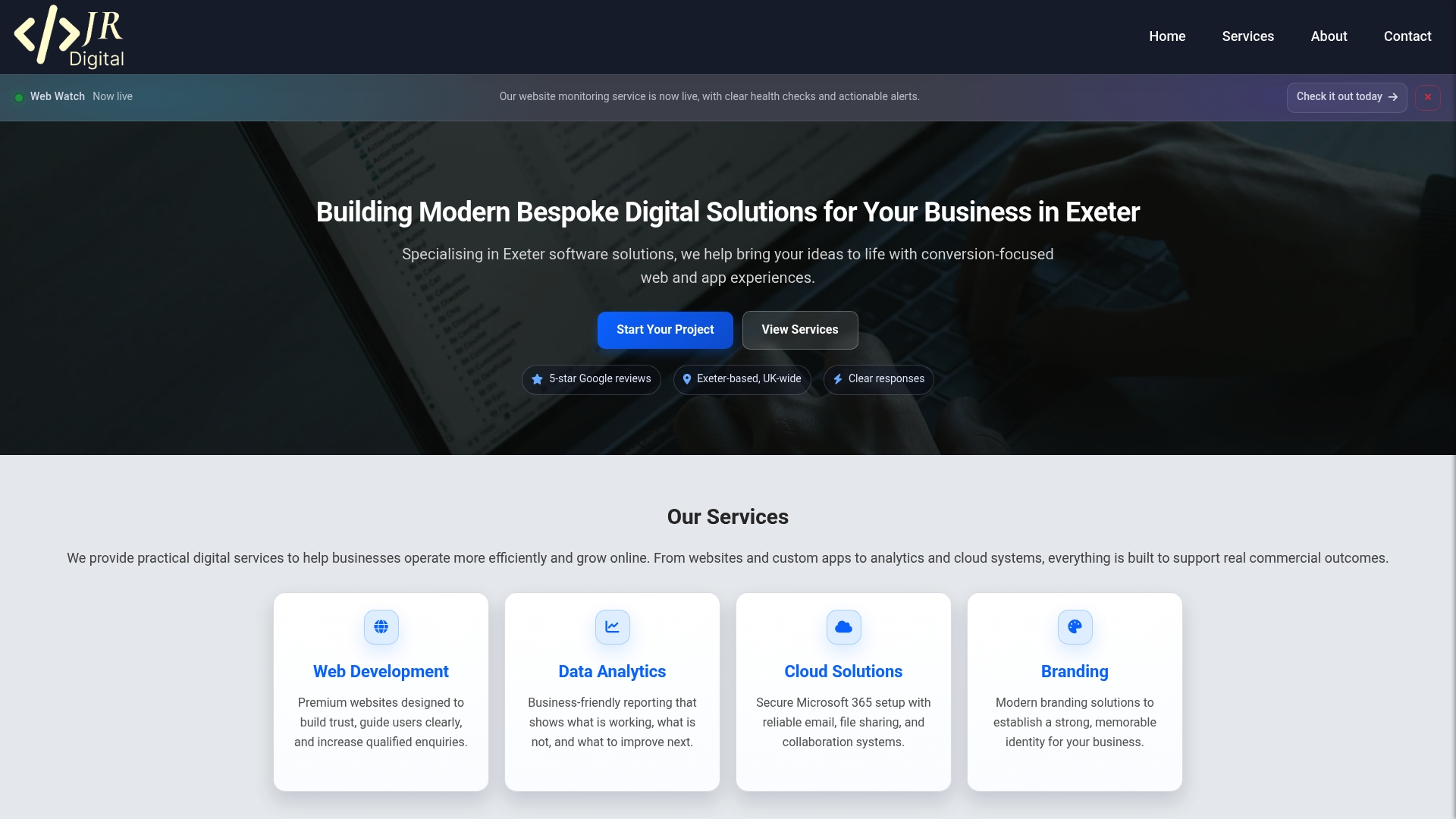
We handle Microsoft 365 tenant configuration and home site setup through our Cloud Office Setup service, bespoke intranet page design without templates, and analytics dashboards through our data solutions so you can measure whether your pilot is actually working before rolling it out further. Every build is agreed up front with clear scope and no hidden complexity.
If you’re weighing up a pilot scenario, a scoped call is the fastest way to find out what it would take. Have a look through our portfolio for examples of past bespoke work, then get in touch through Jr-digital to talk through your intranet build.

Key Microsoft guidance and example galleries
For further reading beyond this article:
- SharePoint Look Book, ready-made example pages and templates.
- Plan an intelligent SharePoint intranet, Microsoft’s own planning walkthrough.
- SharePoint information architecture guidance, for navigation and metadata decisions.
- SharePoint accessibility guidance, for contrast, alt text and keyboard navigation checks.
Sources
- Introduction to SharePoint information architecture - SharePoint in Microsoft 365 | Microsoft Learn
- Plan an intelligent SharePoint intranet - SharePoint in Microsoft 365 | Microsoft Learn
- SharePoint Look Book - Microsoft Adoption
- SharePoint home sites improvements - Microsoft Learn
FAQ
What are some good examples of intranets?
Strong examples tend to follow one of five patterns: a news hub for company updates, a knowledge hub for policies, a daily-work dashboard, a social hub built on Viva Engage, or a stripped-back field-worker layout. The SharePoint Look Book shows working examples of each.
What are some good SharePoint intranet design templates?
Microsoft’s built-in communication site templates cover news-led, dashboard-led, and department-specific layouts, and the Look Book gallery lets you preview and copy full page designs rather than starting blank. Pick the template closest to your chosen pattern and adapt the web parts from there.
Can SharePoint be used as an intranet?
Yes, SharePoint is the standard platform for building modern intranets within Microsoft 365, combining a home site, hub sites, and the SharePoint app in Teams into one connected experience. Most organisations use it alongside Viva Connections to give staff a consistent landing page across desktop and mobile.
What are some cool things I can do with SharePoint?
Beyond a homepage, SharePoint supports embedded Power BI dashboards, Power Automate approval workflows, audience-targeted news and cards, and Viva Engage community feeds. Jr-digital’s Cloud Office Setup service covers tenant configuration for these features if you’d rather not configure them yourself.
How much does it cost to build a custom SharePoint intranet?
Costs vary depending on scope, from a simple home site setup to a fully bespoke dashboard with analytics. Jr-digital’s Cloud Office Setup is a bespoke service with pricing available on the site, with current pricing for other services available on the site.